Tutorial – Members Portal
Welcome to IGTI Members Portal
We are excited to announce the launch of the new IGTI website, now featuring a dedicated Members Portal. This new platform highlights our commitment to supporting our students, members and associates, offering a personalized space to access resources and community features. Log in today to explore all the new details tailored just for you.
Tutorials
How to Login and Check Courses Enrollment Status
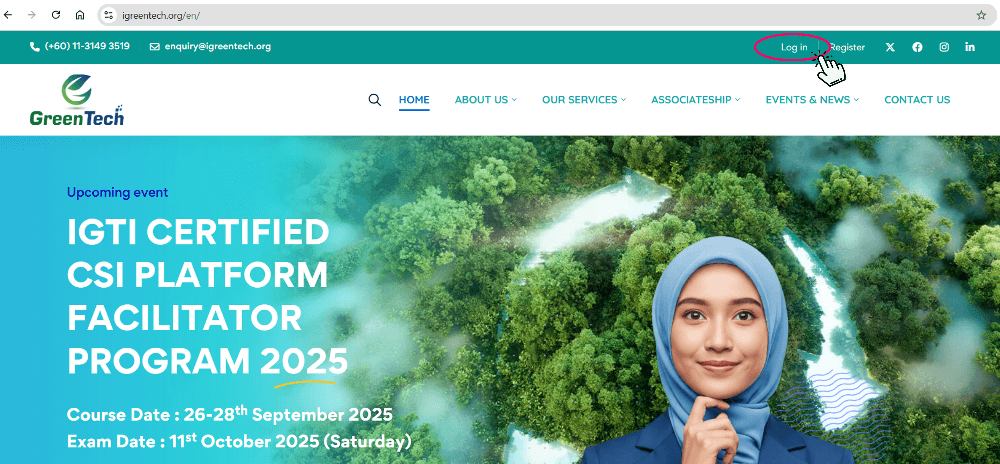
Step 01 : Click Log in in the top right corner.
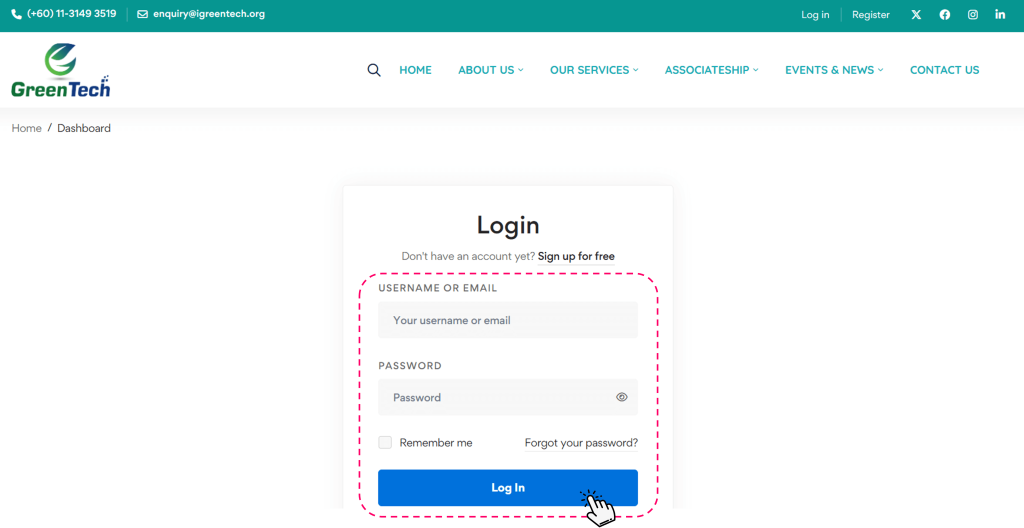
Step 02 : Key in your registered or given Username/Email, Password and click Log In. Click Forgot your password to reset password if required.
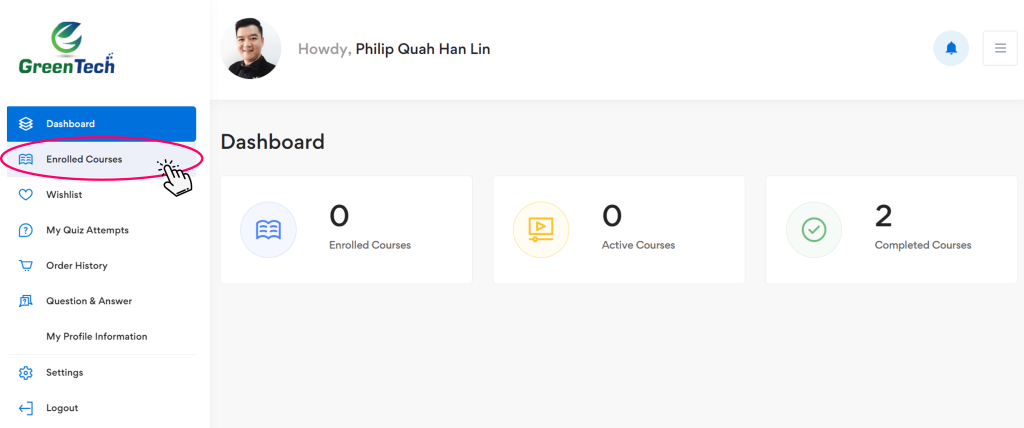
Step 03 : After login, will come to Dashboard, user can view more information from the left panel. Click Enrolled Courses to view previously enrolled courses.
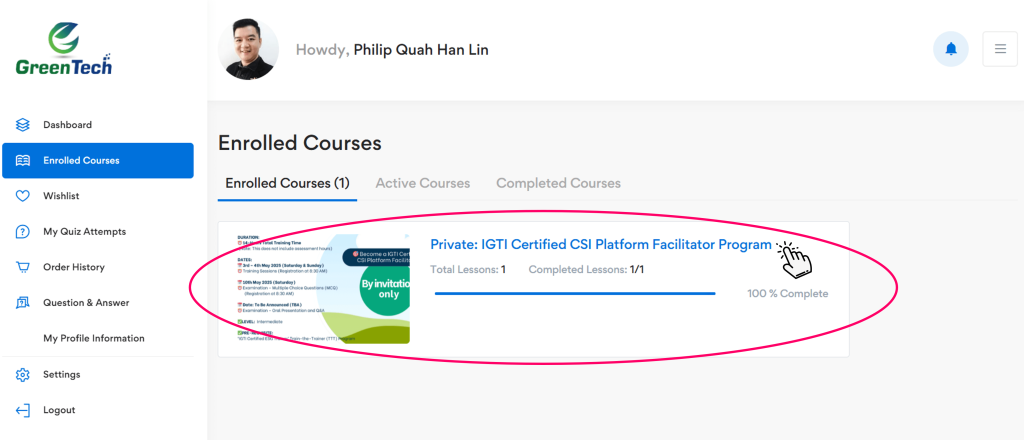
Step 04 : User will see the status of each courses enrolled. Click Course Title to see more course details.
How to Check Entitled Course E-Certificate
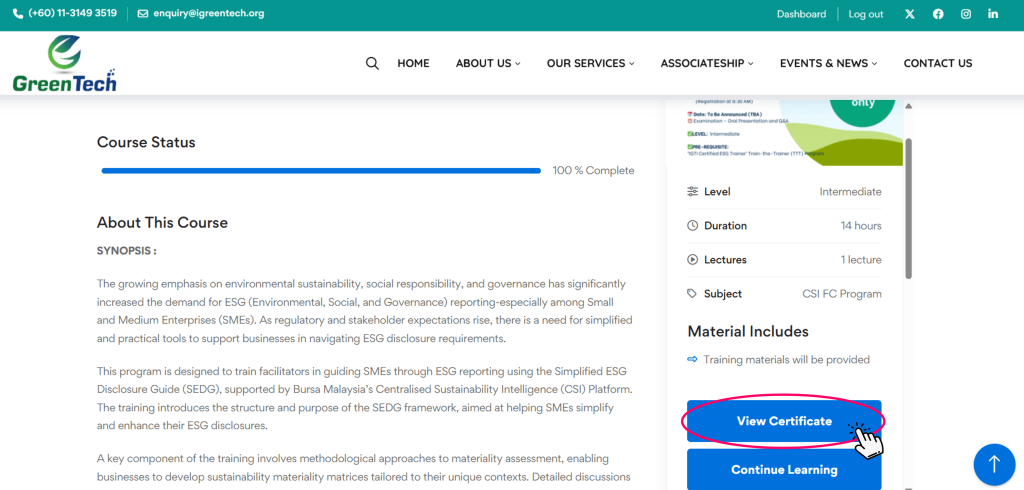
Step 01 : Click any required Course in the Enrolled Courses page.
Step 02 : In the Course page, click View Certificate should user has completed the course requirements.
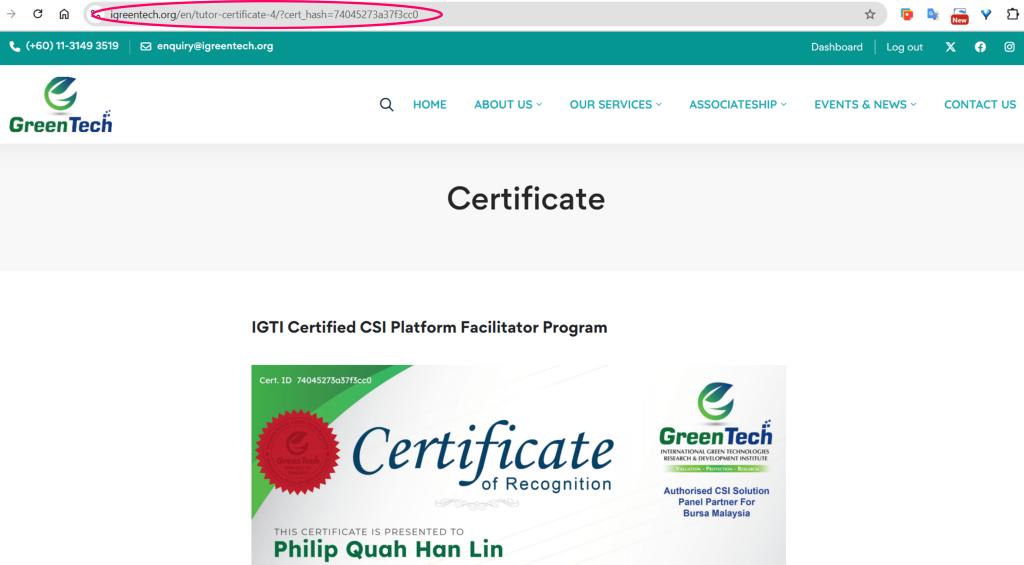
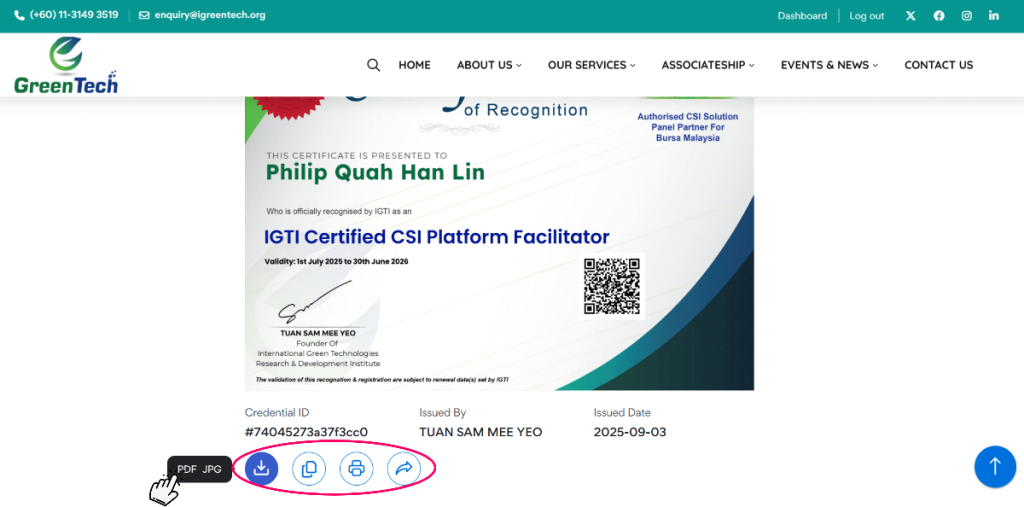
Step 03 : User will see the E-Certificate in the page. Each E-Certificate is generated with a unique Certificate ID to ensure authenticity. Scanning the QR code on the certificate will direct visitor to a unique URL on the IGTI website, allowing for immediate verification of its validity.
Step 04 : Scroll to the bottom, user can Save PDF, Copy, Print or Share the E-Certificate.
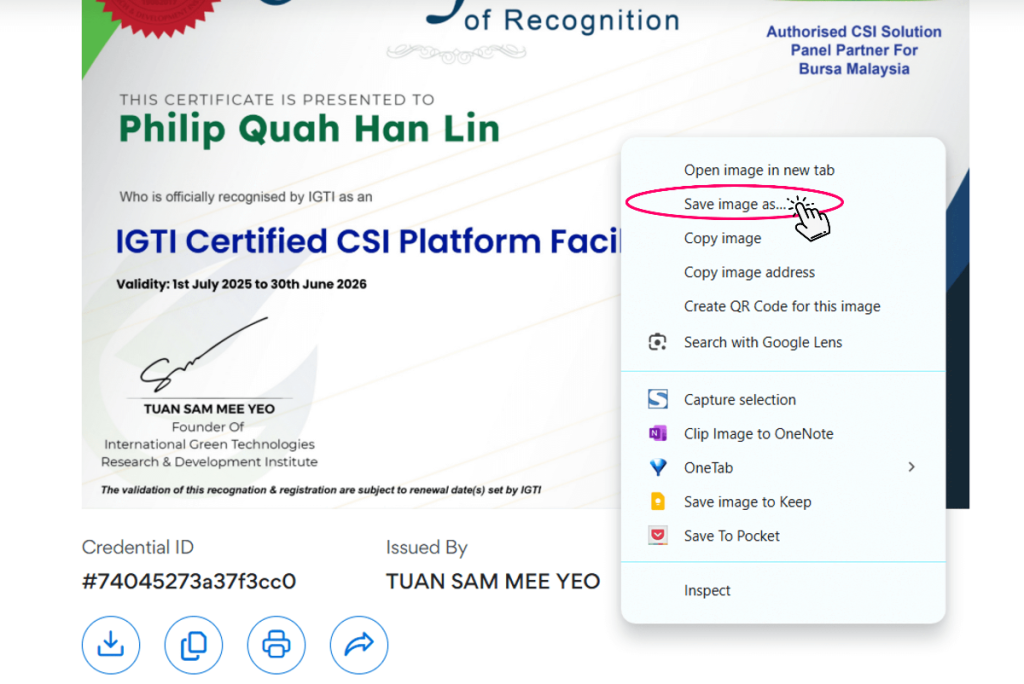
Step 05 : Alternatively, user can also Right Click the image of the Certificate, click Save image as
How to Update Profile Information & Photo
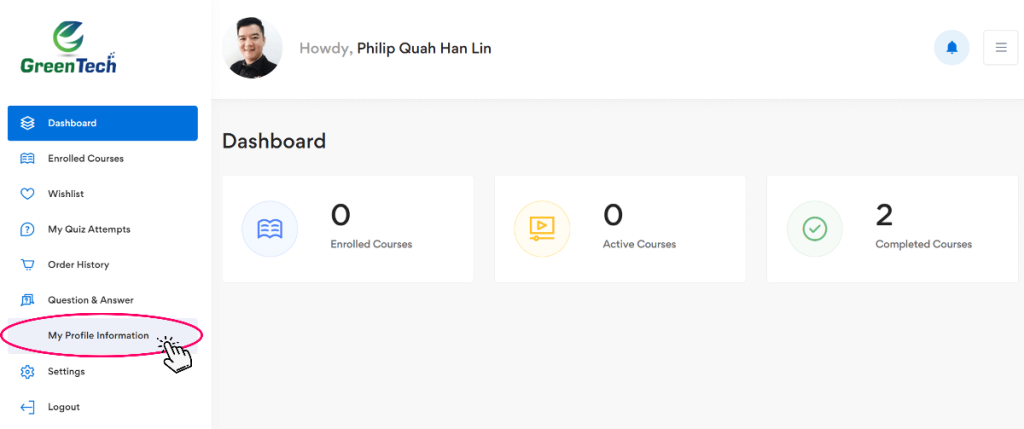
Step 01 : Click My Profile Information in the left menu bar.
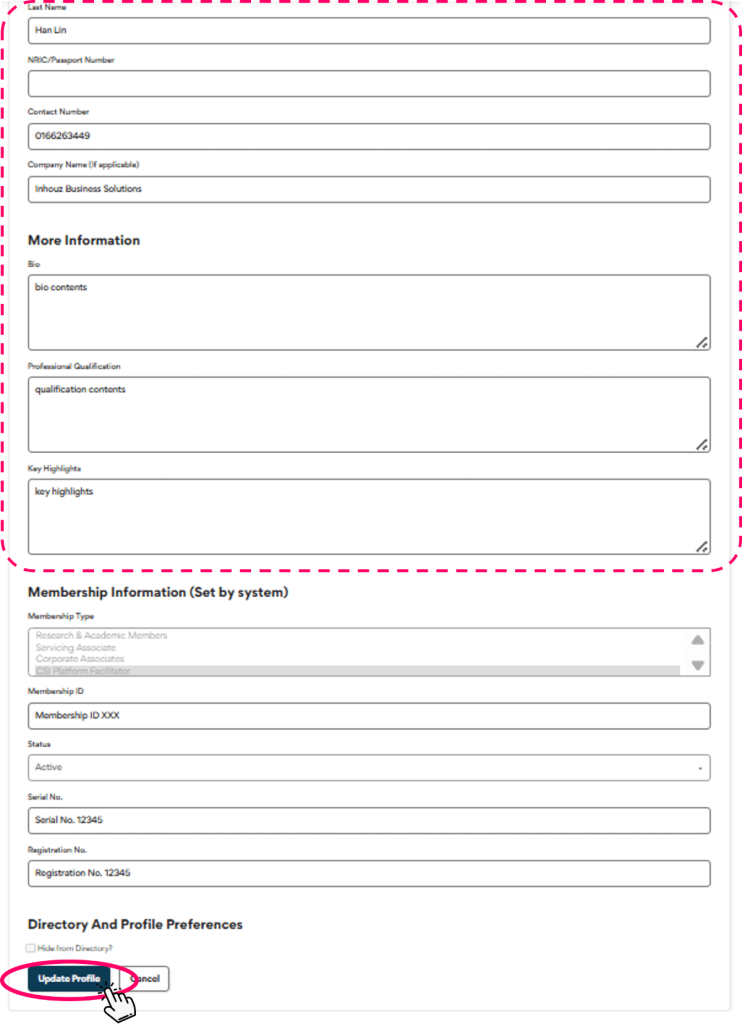
Step 02 : Edit or fill in more information in the respective fields. Click Update Profile at the page bottom to save. User can also view the Membership Information such as Membership Type, ID, Serial No. and Registration No.
Check Hide from Directory should you do not want to publish your information.
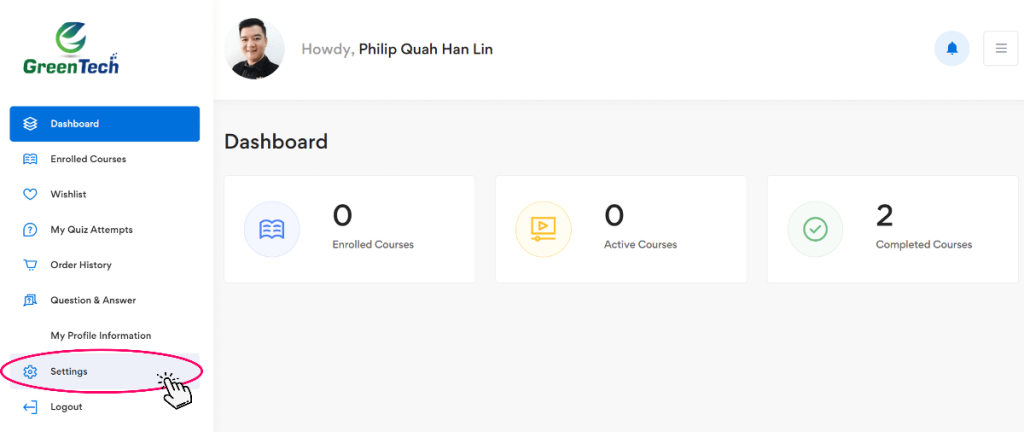
Step 03 : To upload/edit your Profile Photo, click Settings from the left menu bar.
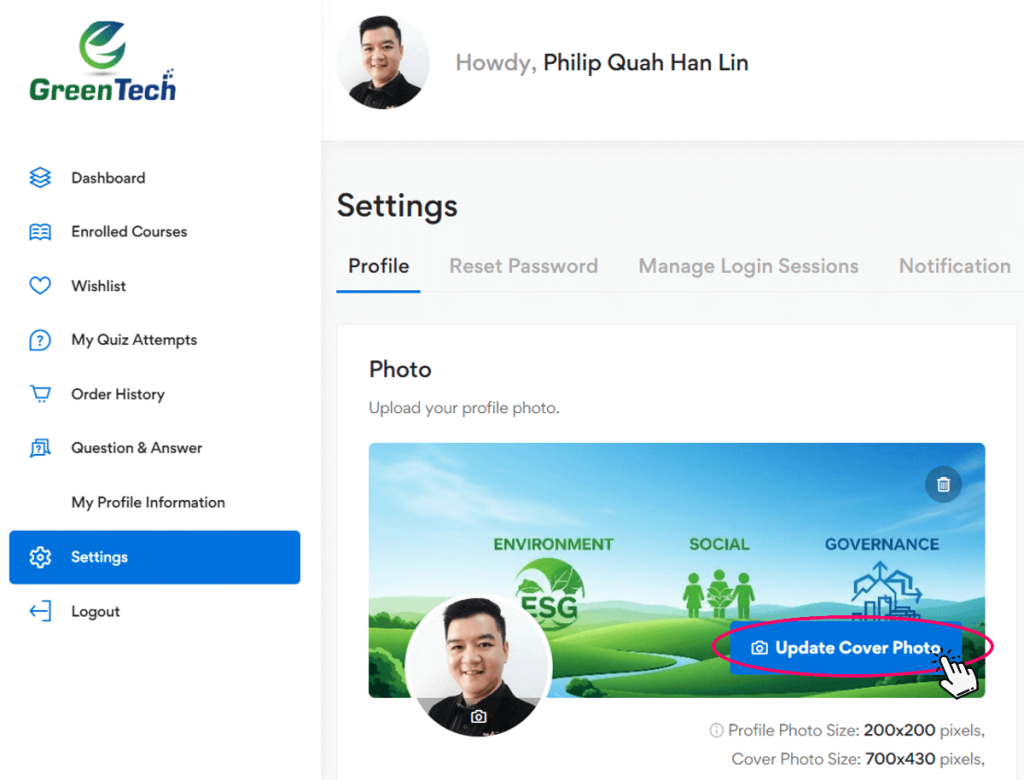
Step 04 : Click Update Profile Photo or Update Cover Photo to upload/edit photos. Recommended Profile Photo Size is 200×200 pixels; Cover Photo Size is 700×430 pixels.
Search
Categories
Latest Posts